Guides01 July 2026
How to add email and phone verification lite to WooCommerce
Email verification lite and phone verification lite can be enabled directly in your WooCommerce plugin settings.
Before you start
You'll need:
- The Addressfinder WooCommerce plugin installed and configured for address autocomplete
- An Addressfinder account (active paid plan or trial)
The following settings are pre-configured with our recommended setup for meeting Australia Post's checkout requirements. If you are utilising this for other purposes, see the note below for how to adjust this.
Enable email verification lite
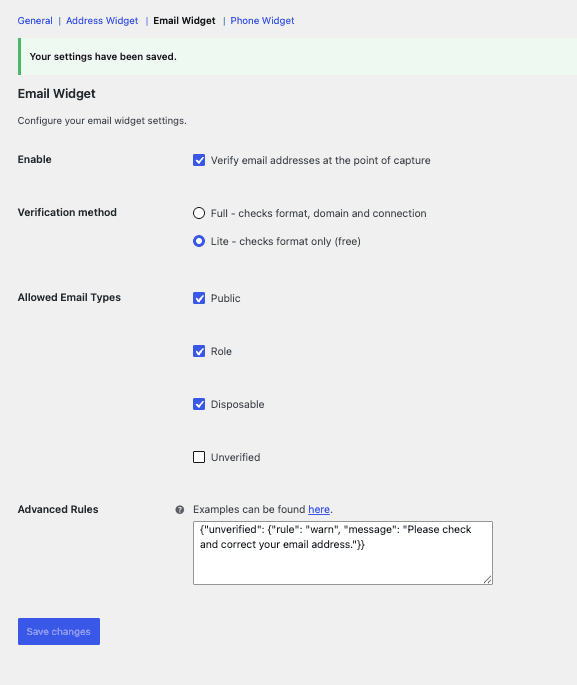
- In your WordPress admin, go to WooCommerce > Settings > Addressfinder > Email Widget.
- Check Verify email addresses at the point of capture.
- Select Lite, checks format only (free) as the verification method.
- Paste the following into Advanced Rules:
{"unverified": {"rule": "warn", "message": "Please check and correct your email address."}}5. Click Save changes.
Example screenshot of configuration.
Enable phone verification lite
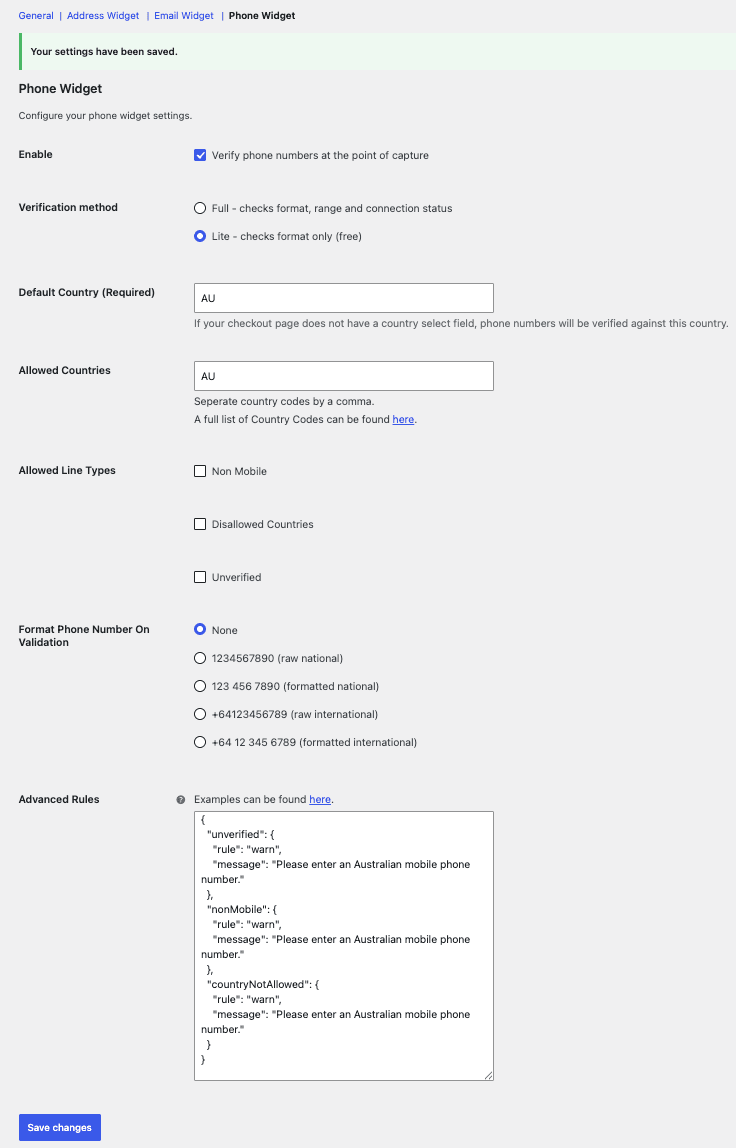
- In your WordPress admin, go to WooCommerce > Settings >Addressfinder > Phone Widget.
- Check Verify phone numbers at the point of capture.
- Select Lite, checks format only (free) as the verification method.
- Set Default Country to AU.
- Set Allowed Countries to AU.
- Paste the following into Advanced Rules:
{
  "unverified": {
    "rule": "warn",
    "message": "Please enter a valid Australian mobile phone number."
  },
  "nonMobile": {
    "rule": "warn",
    "message": "Please enter a valid Australian mobile phone number."
  },
  "countryNotAllowed": {
    "rule": "warn",
    "message": "Please enter a valid Australian mobile phone number."
  }
}
7. Click Save changes.
Example screenshot of configuration
Note on Allowed Line Types
The checkboxes on this page only support allow or block. To warn instead, as recommended above, use the Advanced Rules JSON. Leave the checkboxes unchecked when using Advanced Rules, as the JSON will override them.
Serving other markets?
Update Default Country and Allowed Countries to suit your markets (comma-separated ISO2 codes, e.g. AU,NZ), and adjust the nonMobile and countryNotAllowed messages in the Advanced Rules JSON to match.
Switching from full to lite
To switch from full verification, select Lite, checks format only (free) as the verification method on the relevant widget settings page, and paste the Advanced Rules JSON shown above.
Important: switching back to Full will perform standard verification, which is a charged service.
If you run into any issues, get in touch with our support team.
Start verifying data in minutes
30-day free trial. No credit card required. Cancel anytime.